PST are Personal Storage Table files. These data files are of paramount importance. They are portable and are great for archiving. But PST files are less secure as well. PST files can be corrupted. A damaged PST can trigger frequent error messages. In case of corruption, users also encounter sudden crashes or missing mail items.
Let’s decode the first line of defence for PST corruption. It is built-in functionality called ScanPST.exe. This utility scans, diagnoses, and repairs. But its capabilities are limited. It can easily fix minor structure inconsistencies. But ScanPST.exe often falls short when dealing with severe corruption or large file sizes. Therefore, experts strongly recommend knowing other ways to fix a damaged PST. Everyone must learn How to Repair Outlook PST File Without ScanPST. This post will shed light on some other functionalities. Additionally, we will also explore an Outlook PST Repair Tool.
Signs of PST File Corruption:
Users may experience the following scenarios:
- Outlook freezes or crashes frequently
- Problem in launching of the email client
- Frequent popping up of error messages
- Email messages can’t sync with Outlook.com
- User unable to open PST file
Decoding ScanPST.exe Working:
Let’s move towards resolution of the issue. Refer to the guide below.
- Discover the utility on the following locations:
| Version | ScanPST Location |
| Office 365\2019\2016: | –For 64-bit Outlook C:\Program Files\Microsoft Office\Office16 –For 64-bit Outlook C:\Program Files\Microsoft Office\root\Office16 –For 32-bit Outlook C:\Program Files(x86)\Microsoft Office\root\Office16 –For 32-bit Windows C:\Program Files (x86)\Microsoft Office\Office16 |
- Exit Outlook
- Shutdown all allied apps and processes
- Press Windows + R keys
- Type %programfiles%/Microsoft Office/ in the box
- Choose the targeted PST file
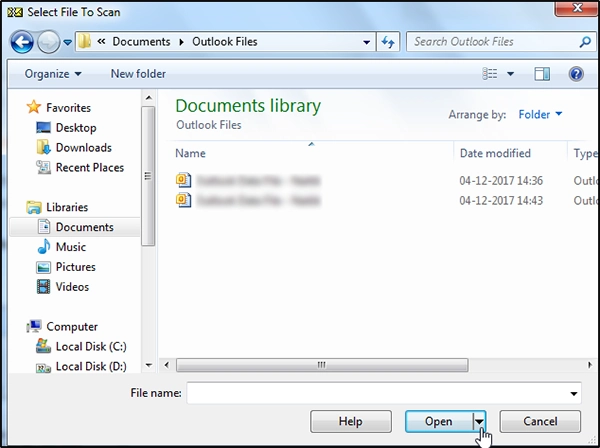
- Initiate the process for scanning
- The detected errors will appear in a window
- Click the ‘Repair’ button
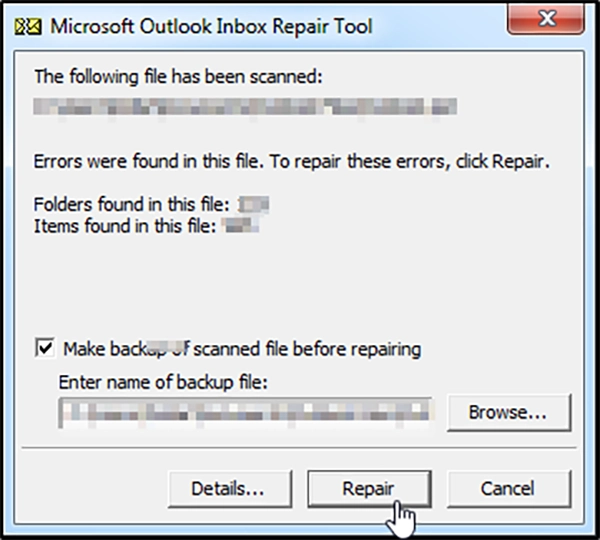
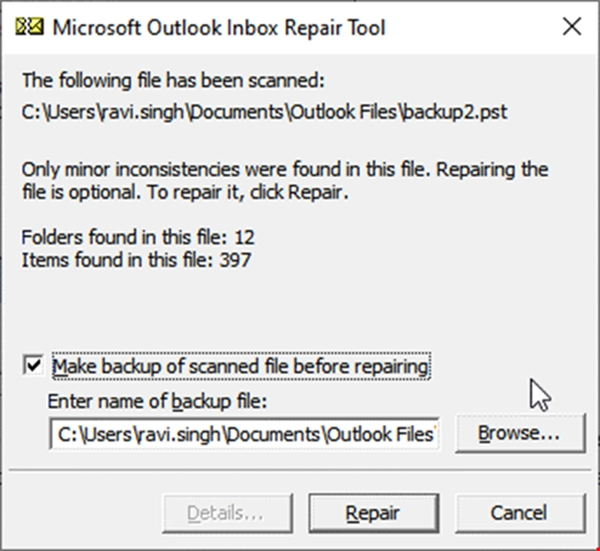
- Check in the option reading “Make backup…..repairing”
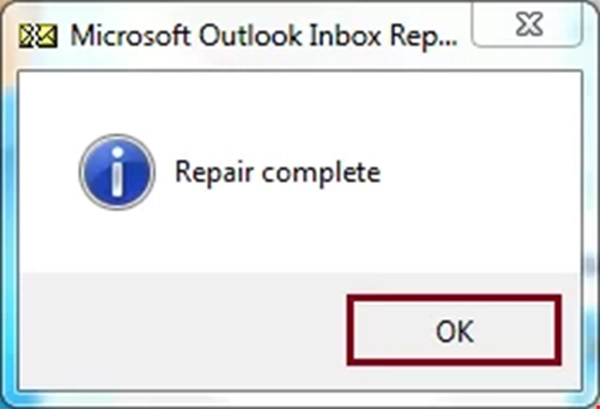
- Examine the file after process completion
Shortcomings of ScanPST.exe:
It may not work in the following cases:
- Inaccessible/ Orphaned Files: This functionality may fail in case of encrypted, orphaned, or password-protected PST files.
- Risk of Data Loss: No one wants to loss crucial data. ScanPST focusses on restoring file integrity. It doesn’t focus on file repair. It will lead to permanent loss of crucial emails, important attachments, etc.
- No Recovery of Deleted Emails: This functionality is unable to recover mailbox items that were accidentally deleted.
- A Big Data File: It struggles, even crashes while scanning a big file.
What are the Alternatives to ScanPST?
One of the common queries is “How to Repair Outlook PST File Without ScanPST?” Yes, there are other ways as well. Refer the guide below:
Method 1: Repair PST Using Outlook Safe Mode: The users may try to repair PST after disabling third-party plugins. Such add-ins often cause ScanPST to malfunction. Follow the below steps:
- Press Windows + R Keys
- A dialogue box will appear
- Type Outlook.exe /safe in it, then click Ok
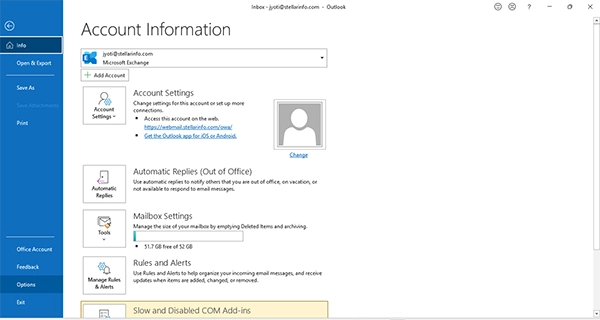
- Navigate to the File tab
- Choose Option
- Press Add-ins
- Choose COM-add-ins
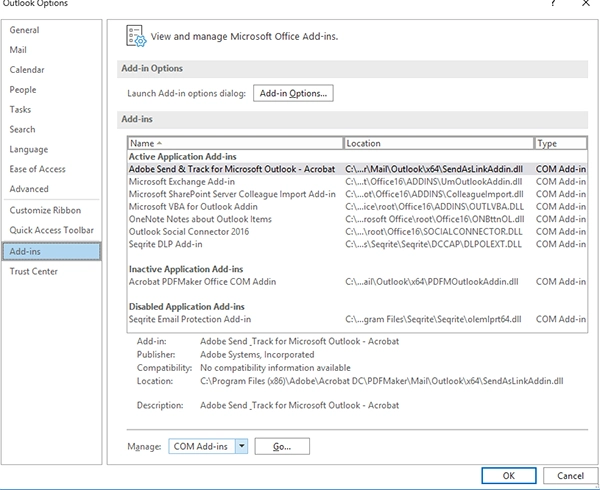
- Click on Go
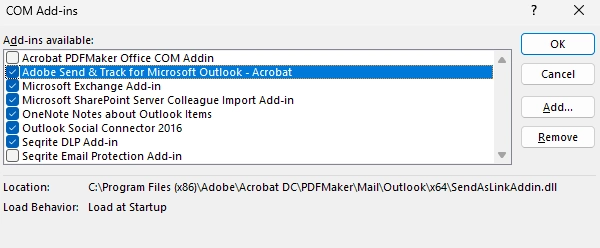
- A complete list of Add-ins will appear
- Uncheck all the add-ins, press Ok
- Exit the Outlook and restart the application
- Try to repair the damaged file
Method 2: Create a New Outlook Profile: The user can also try to fix the issue by creating a new Outlook profile. Follow the below steps:
- Exit Outlook
- Close all allied processes running in the background
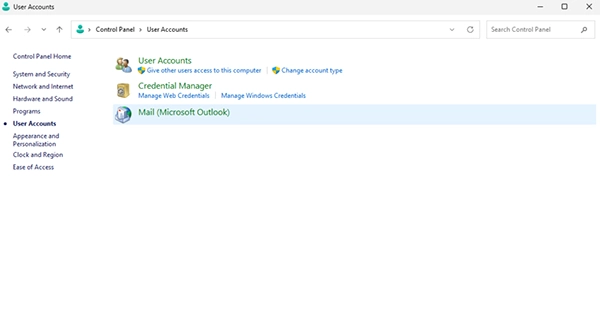
- Browse Control Panel
- Go to User Account
- Press on Mail (Microsoft Outlook)
- A Mail Setup box will appear
- Go to Show profiles
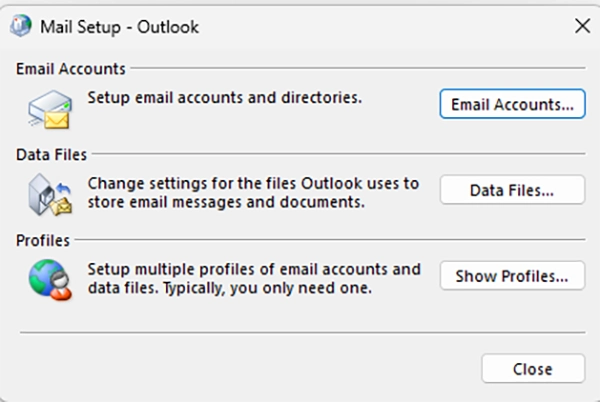
- Press Add profiles
- Name your profile
- Then press OK

- Enter Email and password
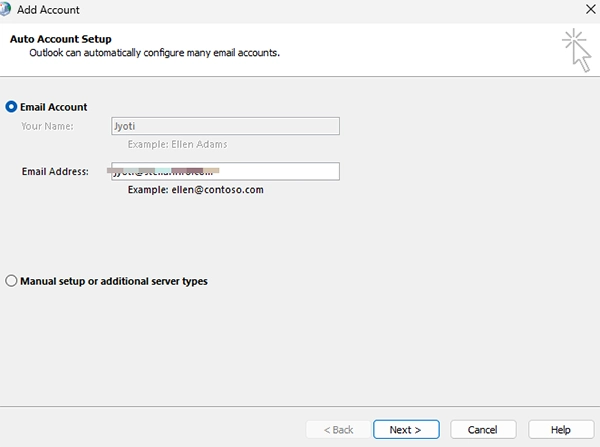
- Then hit on Next
- After account configuration, press Finish
- Return to the show profile
- Now select new profile
- Choose option reading “Always….. profile”
- Then press Apply
Method 3: Use a Professional Tool (Recommended):
The above functionalities require technical expertise. They also burn productive hours. Additionally, the security of the sensitive data also goes for a toss. The smartest way is to employ an Outlook PST Repair Tool. It is the most reliable approach. Tools like Stellar Repair for Outlook are extremely easy to use. They employ advanced algorithm to fix even complex corruption scenarios.
Benefits of Stellar Repair for Outlook:
- Employs advanced algorithms to fix deep-level corruption
- Capable of fixing an oversized PST file
- Can recover permanently deleted email messages
- Capable of recovering deleted attachments
- Provides option for preview and selective recovery
- Maintains the original hierarchy
- Supports all Outlook versions
- With advanced filter options for selective recovery
Conclusion:
PST files are the main strength of Outlook. When these data files (.pst) become corrupted, users may encounter multiple issues. Microsoft provides a built-in utility called ScanPST.exe to repair these files (.pst). But sometimes it fails. It is not always effective. It fails when the PST file is severely damaged or excessively large. We have discussed 2 alternative solutions—repairing PST Using Outlook Safe Mode and Creating a New Outlook Profile. But they also have limitations. Using a professional Outlook PST repair tool can provide a more advanced and reliable recovery approach. Tools like Stellar Repair for Outlook offer superior recovery for severely damaged, oversized or encrypted PST. They can handle deep corruption. These tools can recover deleted items as well. They also maintain the original folder structure and integrity.