Computer-aided design used to mean an expensive licence and a steep commitment. That has not been true for a while. Today there are genuinely capable CAD programs that cost nothing, and for students, hobbyists, makers, and small non-commercial projects they are often all you need. The catch is that “free CAD” covers a wide range of very different tools — some are 3D modellers, some are pure 2D drafters, some live in a browser. Picking well means matching the program to the kind of work you actually do.
Here are five that are worth your time, what each is good at, and where each one asks something in return.
1. FreeCAD
FreeCAD is the most ambitious free program on this list, and the closest thing the open-source world has to a full parametric modeller. Parametric means the model remembers how it was built: change a dimension early in the design and everything downstream updates with it. That is the same principle behind commercial packages like SolidWorks and Fusion 360, and FreeCAD offers it with no licence cost and no usage restrictions.
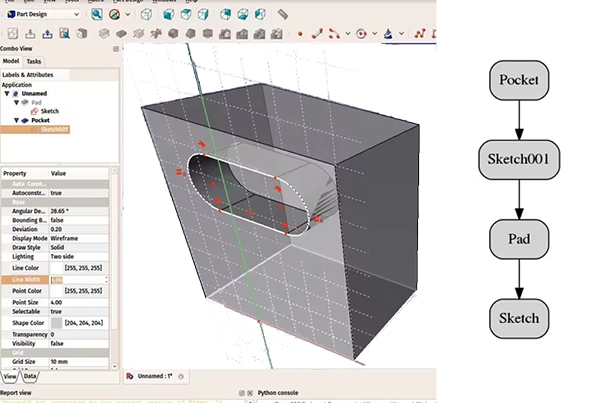
It is organized into workbenches, each a focused set of tools — Part Design for solid modelling, Sketcher for the 2D profiles that drive 3D features, Draft for traditional 2D drafting, plus workbenches for sheet metal, technical drawings, and engineering analysis. A model can travel from a sketched profile to a finished 3D part to a dimensioned drawing without leaving the application, and it exports to STEP, STL, and other standard formats.
The honest trade-off is the learning curve. FreeCAD expects you to think in terms of workbenches and a model tree, and newcomers can feel lost at first. Recent versions have smoothed many rough edges, and the payoff for sticking with it is real, but this is not the program you install for a five-minute job.
2. nanoCAD Free
If your work is fundamentally 2D — floor plans, mechanical parts, electrical diagrams, site layouts — nanoCAD Free is the most familiar-feeling option here. It is a desktop CAD application built around the DWG format, the industry standard for technical drawings, and it uses DWG as its native file type. Drawings you make can be opened in practically any other CAD program, and most files others send you will open here too.
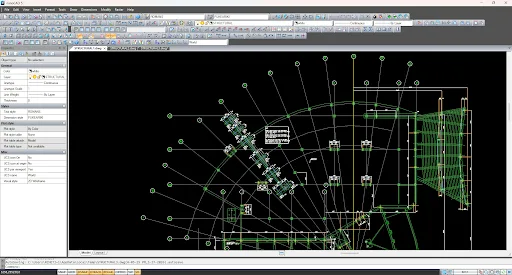
The toolset is more generous than the price suggests: over 450 commands, the full set of 2D primitives and editing tools, proper dimensioning in every common style, text with reusable styles, tables, and blocks. Anyone who has used AutoCAD will feel immediately at home, because the menus, icons, and command names were deliberately kept familiar — which makes it one of the gentlest ways into professional-style drafting. As a dependable free CAD drafting tool for non-commercial projects, it is a sensible first install.
A couple of things to know going in: this is version 5 of the platform, so it reads DWG up to the 2013 format rather than the newest releases, and 3D here is for viewing rather than full modelling. For 2D work neither limit gets in the way, and the paid nanoCAD Platform picks up where the free edition stops.
3. LibreCAD
LibreCAD does one thing and does it cleanly: 2D drafting. There is no 3D, no parametric machinery, no clutter — just a focused drawing environment for lines, layers, dimensions, hatches, and blocks. For a beginner, that narrowness is a genuine advantage. There is far less to learn before you can produce a real drawing, and the interface will not overwhelm you with tools meant for other kinds of work.
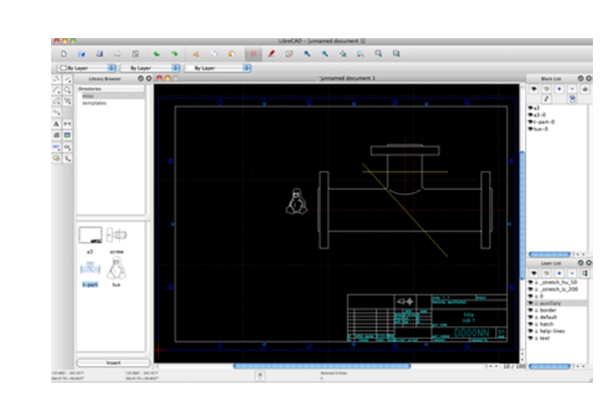
It is open-source and genuinely cross-platform, running on Windows, macOS, and Linux, which makes it a common choice in classrooms and on Linux machines where commercial CAD is not an option. Its native format is DXF, the open cousin of DWG; it can work with DWG too, though that path relies on conversion and the results depend on how complex the file is. If your needs are straightforward 2D and you value simplicity over breadth, LibreCAD is hard to fault.
4. QCAD
QCAD is close in spirit to LibreCAD — a dedicated 2D drafting program — and the two share some history. Its Community Edition is free and open-source, and it is known for being approachable: a clean layout, sensible defaults, and good documentation aimed squarely at people learning CAD for the first time. It handles layers, blocks, dimensioning, and the standard drawing and editing tools, and it works across Windows, macOS, and Linux.
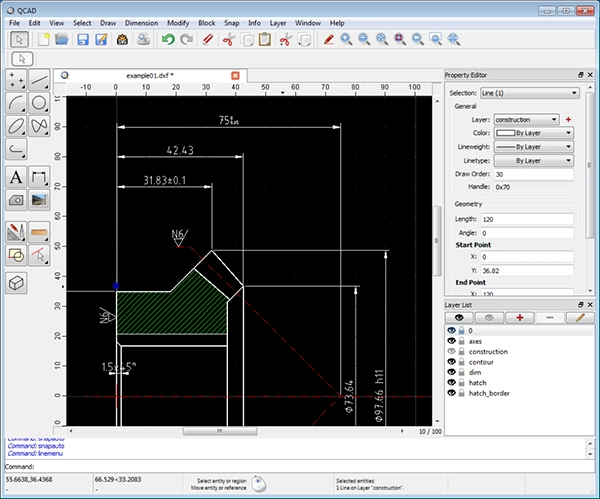
Worth knowing: QCAD’s commercial version adds DWG support and some extra tools, while the free Community Edition centres on DXF. For most learning and hobby work that distinction does not matter, but if exchanging DWG files is essential to you, check it before committing.
5. SketchUp Free
SketchUp Free is the outlier here, and that is the point. It runs entirely in a web browser, requires no installation, and is built around a famously intuitive push-pull approach to 3D modelling — draw a shape, pull it into a solid. It became popular in architecture, interior design, and woodworking precisely because people can produce something satisfying within an hour of starting.
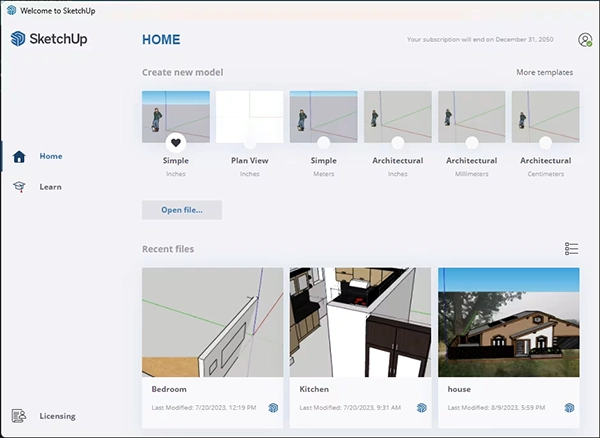
The web edition is free for personal projects and is the easiest entry point on this list. The trade-offs are real, though: it is online-only, the free tier limits storage and export options, and it is a conceptual modelling tool rather than a precision engineering one. For early-stage ideas and spatial design it is excellent; for dimensioned technical documentation, the other programs here serve better.
Choosing the right one
There is no single best free CAD program, only the best one for a given job. For real 3D and parametric design, FreeCAD is the obvious choice and worth the learning investment. For professional-style 2D drafting in the DWG world, nanoCAD Free gives you the most familiar and complete experience. LibreCAD and QCAD both reward anyone who wants focused, no-friction 2D drawing, with QCAD leaning slightly more beginner-friendly and LibreCAD slightly more flexible. And SketchUp Free is the fastest way to start thinking in three dimensions without installing anything at all.
The good news is that trying them costs nothing but time. Most people find that one or two of these fit naturally into how they work — and for non-commercial projects, that is very often the whole solution.